Invoices
Invoices
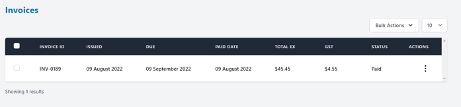
The Invoices tab displays all invoices that have been issued during the membership. Here, all users (except Read Only users) can pay, view or download current and past invoices.
Download Invoice
To download an invoice:
- Navigate to the Invoices page and select Download from the Action Menu to the far right of the invoice you want to view.
Pay an Invoice
To pay an invoice:
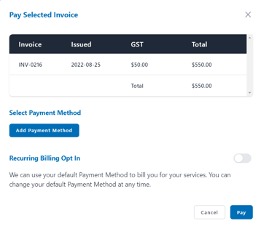
- Navigate to the Invoices page and select Pay from the Action Menu to the far right of the invoice you want to pay.
-
If you don’t have a payment method stored, click Add Payment Method and enter your card or PayPal details and click Create:
-
If you have payment methods already stored, choose which one to charge, or leave the default payment method selected (shown with a green tick).
- Confirm all details are correct and click Pay.
- The status of your invoice will update to Paid and record today’s date and you can download an updated invoice using the Action Menu and selecting Download.
Adding a Purchase Order
Purchase Order numbers can be added to a service line item on your invoice.
There are two methods to add a PO number to your service so that it appears on your invoice: - To add a PO number when ordering a service, on the service details step, enter the PO number in the PO Number field (Adjacent to the service name field). - To add a PO number when editing an existing service, navigate to the service details page and open the Edit Service form. Enter the PO number in the PO Number field (Adjacent to the service name field).
Payment Methods
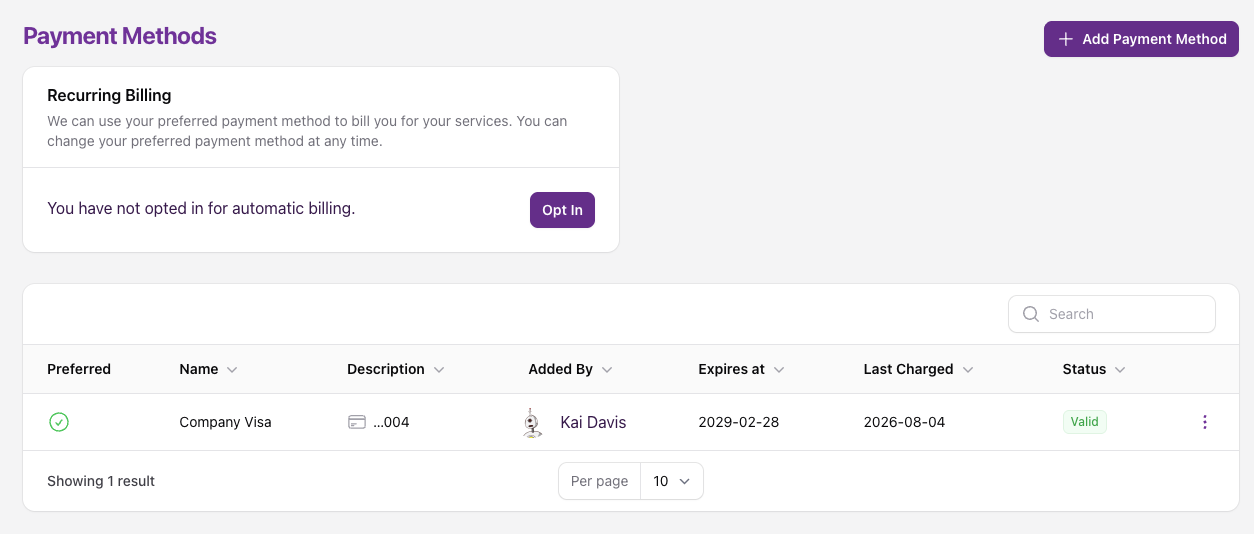
The Payment Methods tab displays all existing payment methods used on your account. All users (except Read Only users) can manage payment methods and opt in or opt out of recurring billing.
Add Payment Method
To add a payment method:
-
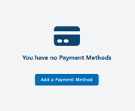
Navigate to the Payment Methods page and click the Add Payment Method button:
-
Enter your credit card or PayPal details and click Create.
- This payment method will be your preferred payment method until changed manually.
- You can have up to 3 valid payment methods on your account at a time, the green tick denotes which one is preferred.
Change Preferred Payment Method
To change your preferred payment method:
- If you are adding a new payment method, you will have the option to make it preferred on creation.
- If you are changing to an existing payment method, navigate to the Payment Methods page and click the Action Menu to the far right and select Set as Preferred.
- The green tick will now show against the new payment method and a red cross against the previous one.
Recurring billing uses your other payment methods as a backup
Recurring billing charges your preferred payment method first. If that charge fails, we'll automatically try your other valid payment methods as a backup before the invoice becomes overdue.