Chorus EdgeConnect
EdgeConnect allows members to access peering on AKL-IX from anywhere on the Chorus UFB footprint in New Zealand.
Ordering an EdgeConnect Service
-
Navigate to the Services > New Order page and choose Chorus EdgeConnect.
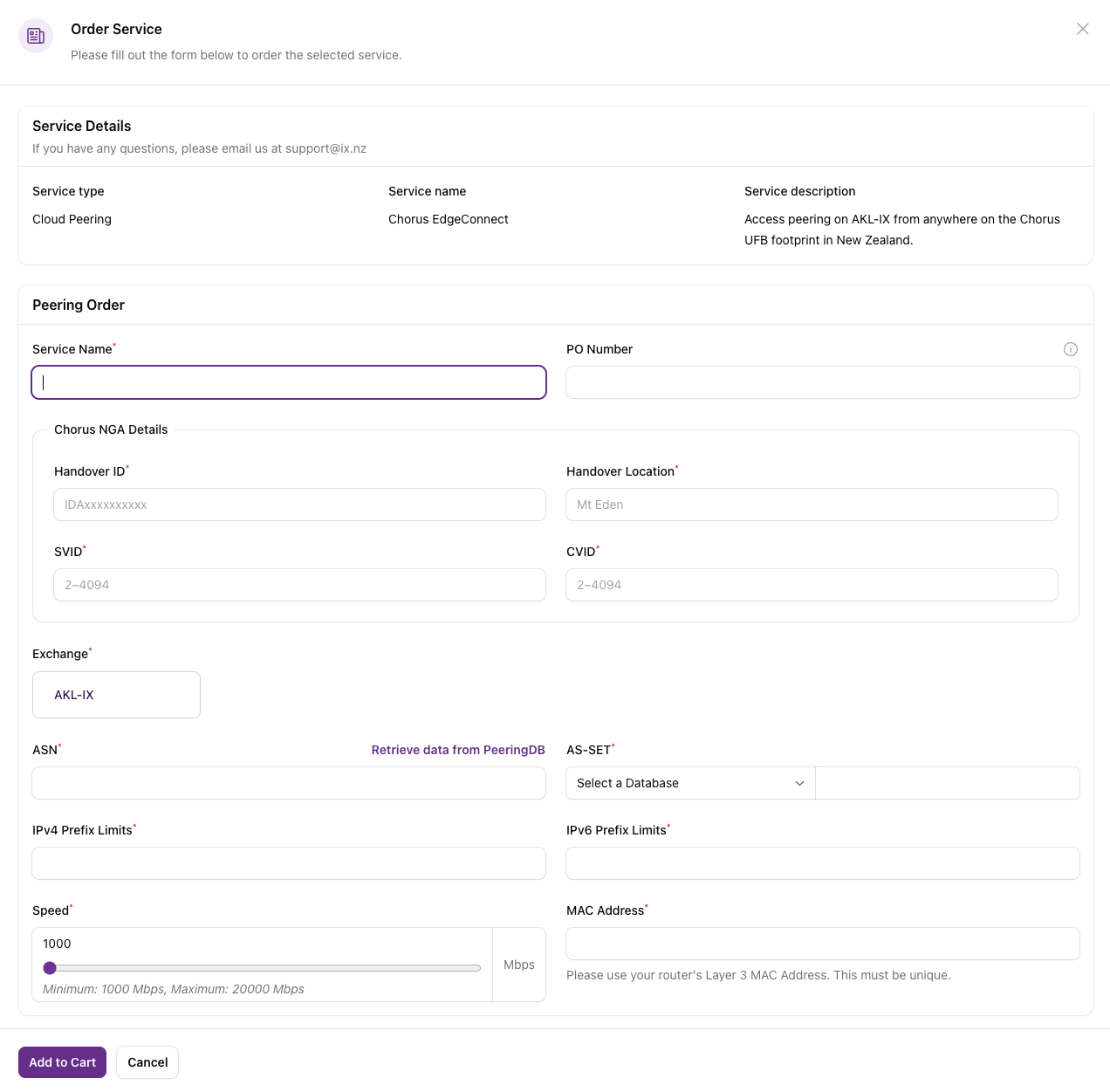
-
Use an internal reference for your Service Name.
- Provide the details of your existing Chorus UFB handover, including the VLAN pair you would like your peering service to be provided over.
- Choose the exchange you would like to connect to.
- Enter your ASN and retrieve your AS-SET & Prefix details from PeeringDB, or enter manually. Please review these details carefully as they will be used to configure your Peering Service.
- Enter the speed you would like to order. Pricing information will be displayed at the bottom of the order form based on the speed selected.
- Enter the MAC address of your router.
- Click Add to Cart. For more information on completing your order and checking out the cart, please see Ordering a new service.
- Once you submit your order, we will pass on your request to Chorus, who will contact you to confirm and provide an RFS date.
- Once Chorus has provisioned your service, you will have access to the peering fabric on the SVID/CVID pair you chose.
To edit or cancel your EdgeConnect Service, please follow the steps outlined in the Peering documentation.